How to secure your browser from invasive extensions

Many seemingly helpful browser extensions are actually disguised data thieves that secretly record your browsing history, intercept session tokens, and even sell your internal network traffic.
To lock down and secure your browser, you must manually audit your installed add-ons and permanently delete anything that you do not actively use, or that requests unnecessary permissions.

What are invasive browser extensions, and how do they affect my privacy?
Browser extensions are small software programs you install to add convenient features to your web browser, such as finding coupon codes, ad-blocking, or grammar assistance.
Because they run directly inside your browser, they have deep, unrestricted access to your internet activity. If an extension is malicious or gets sold to a shady developer, it can act as a silent surveillance tool.
It can bypass your secure connections to read your private messages, secretly monitor your keystrokes, and invisibly inject tracking code into every website you visit.
This constant exposure of our personal data is a massive security risk.
In April 2026, cybersecurity researchers revealed that over 6.5 million users had their browsing habits legally sold to third parties by 82 popular extensions, including highly rated streaming tools and fake ad blockers.
Cybercriminals are actively exploiting user trust through "ClickFix" social engineering and disguised AI assistants to silently harvest session tokens in the background. If you blindly trust every extension you download, you are willingly handing over your personal and professional digital activity.
Privacy differences between browsers
Not all web browsers treat extension permissions with the same level of strictness.
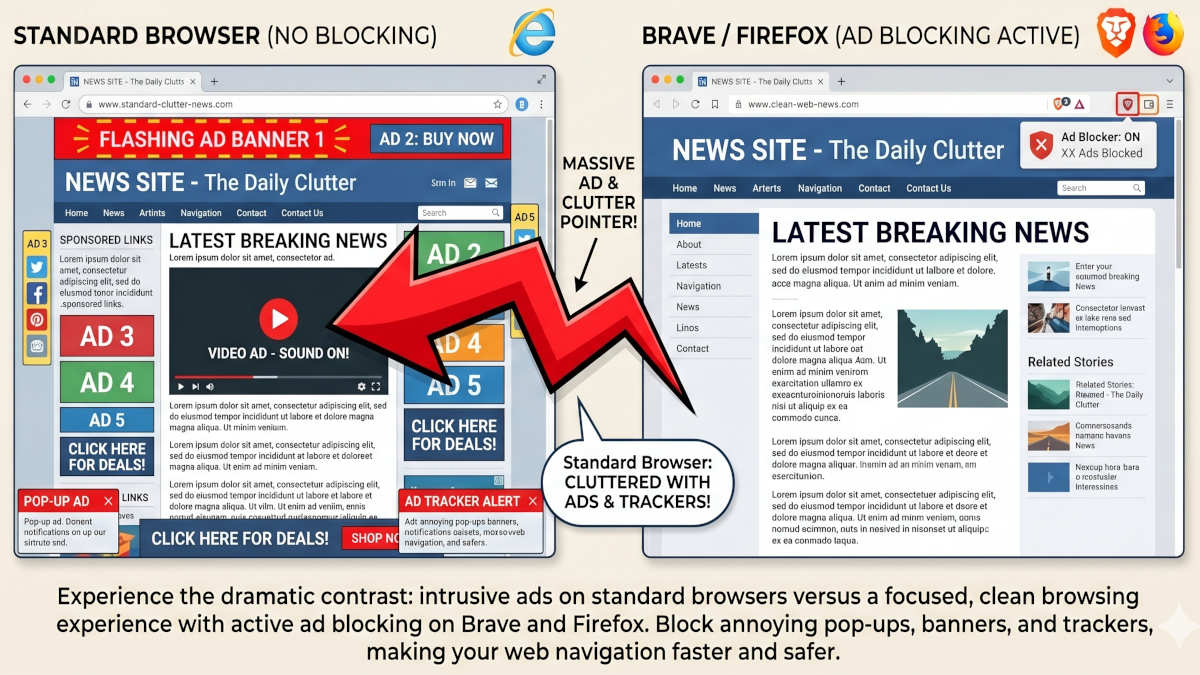
Mainstream browsers like Google Chrome boast the largest extension marketplace, but because of their massive market share, they also face the highest volume of malicious add-ons and permissive data-harvesting policies.
Conversely, privacy-focused browsers like Firefox and Brave implement stricter default sandboxing, making it significantly harder for third-party tools to track your activity across different tabs.
Choosing a secure foundation is just as important as managing what you install on it.
For a breakdown of which browser actually protects your data from the ground up, read our article about safe browsers and which one can be best for you.
What to do: Your 3-minute action plan
Cleaning up your browser takes less than three minutes, requires zero technical skill, and stops background data harvesting immediately.
- Open Your Settings: On your computer, open your browser and click the puzzle piece icon or navigate to the "Extensions" or "Add-ons" menu in your main settings.
- Purge the Clutter: Scroll through your list and completely delete any extension you have not used in the last month. If you do not recognize a tool's name, remove it immediately.
- Check Permissions: For the few extensions you decide to keep, click "Details" or "Manage" to review their access rights. If a simple utility tool requires permission to "read and change all your data on all websites," it is a severe privacy risk and should be deleted.
- Pin the Essentials: Once your list is clean, pin only your trusted, verified tools—like your password manager—to your toolbar so you can always see exactly what is running.
What else can be done to improve browser security?
If you are not forced to use a specific browser for some reason, choosing one with a more secure, privacy-oriented foundation is best.
Read our article about the two best privacy-related browsers and what the flaws and sometimes outright scandals around other popular options like Google Chrome are.
 BOP Authors