The dangers of public Wi-Fi networks and how to protect yourself

Criminals create Wi-Fi hotspots in public spaces, so your phone or computer automatically connects to them. Once connected, every website you visit, and every password you type, can be intercepted before it even reaches the internet.
To close this vulnerability, go to your device's settings and permanently disable the "Auto-Join" feature for all public connections and follow our other security tips.
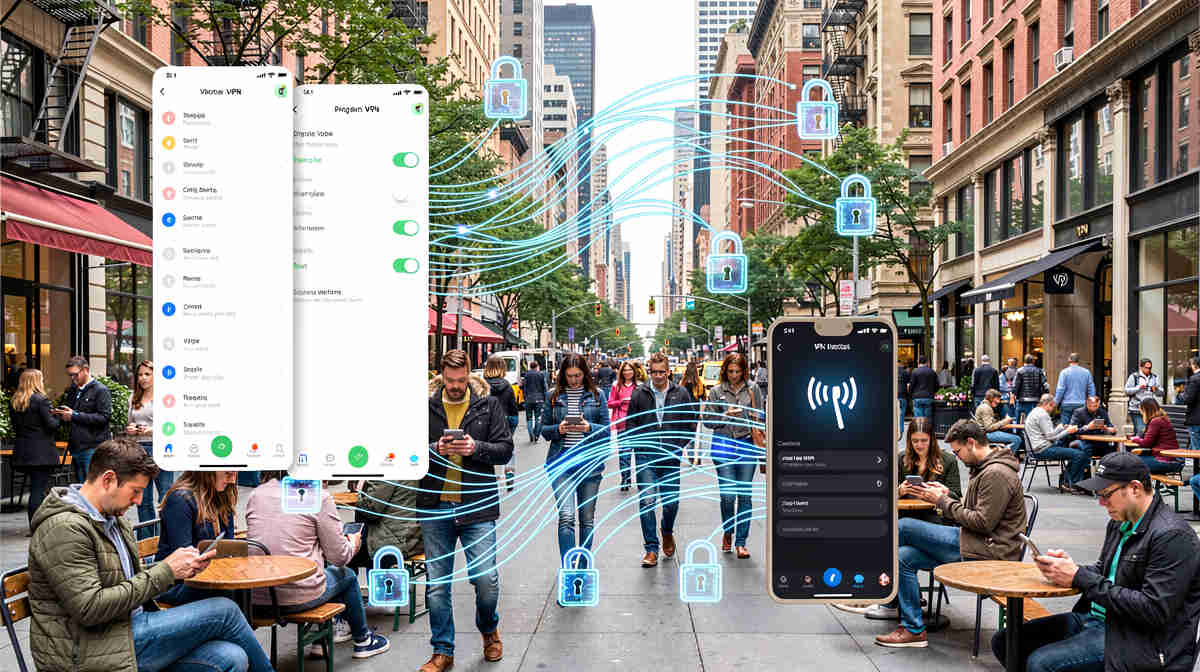
The unexpected privacy and security threat in your pocket
Your phone constantly tries to connect to Wi-Fi networks it has already connected to before - your home, the office, your favorite cafe, ... To do so, it is constantly shouting into the void, looking for network names it remembers.
Hackers can easily go anywhere and capture these requests to see which Wi-Fi names are most commonly checked for existence in that place.
They then broadcast fake networks with these exact same names. Because your phone is set to auto-join, it will silently connect to the hacker's device without ever asking for your permission.
From that moment, all internet traffic, such as visited websites and your account passwords, will pass through the criminal's device before reaching the internet. This is called a Man-in-the-Middle Attack (MITM).
Why is this becoming more and more critical in 2026
Attackers no longer need advanced technical skills to carry out these interceptions in public spaces. With the rise of AI-powered cybercrime tools, anyone can deploy a fake network at a local mall.
They rely entirely on human complacency and the factory default settings of modern smartphones to successfully harvest your credentials.
How to stop the automatic connection right now
Securing your device against this threat takes less than two minutes. The goal is to force your phone to ask for your explicit permission before it connects to any network outside of your home.
- iPhone/iPad: Go to Settings > Wi-Fi, tap the information (i) icon next to a network, and turn off Auto-Join. You can also turn off Ask to Join Networks to avoid constant pop-ups.
- Android: Go to Settings > Connections > Wi-Fi, tap the gear icon next to a saved network, and toggle off Auto-reconnect.
- Windows: Go to Settings > Network & Internet > Wi-Fi > Manage known networks, select the network, and uncheck the "Connect automatically" option.
How to stay safe - even on public Wi-Fi networks
The security and privacy recommendation clearly states not to use free public networks at all - sometimes there is no real other option, like being in a hotel abroad or at the airport.
Here are some tips to stay safer in such a situation and also in general:
- Keep your software up to date. Software updates most often include security fixes.
- Do not share sensitive data. When connected to a public Wi-Fi network, do not do anything that requires you to provide sensitive data, such as online banking or online payments.
- Use two-factor authentication (2FA). Read our simple guide about how to add a second layer to protect your accounts from hackers and why you absolutely need 2FA.
- Use a Virtual Private Network (VPN). A VPN securely encrypts your traffic and is extremely easy to use. Read our comparison of the two best VPN providers and decide which one is best for you.